
 By Nadeem Nawaz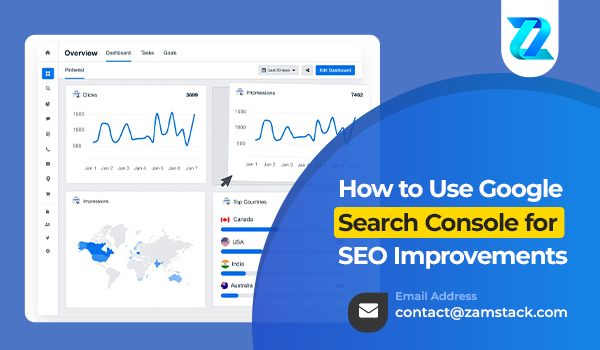
Struggling to find out how your website performs in Google Search? That’s where Google Search Console (GSC) steps in! It’s one of the most powerful — and free — SEO tools you can use. Whether you’re an SEO rookie or a seasoned pro, GSC helps you fine-tune your strategy, fix errors, and climb the rankings.
In this guide, we’ll explore how to use Google Search Console for SEO improvements step-by-step. From performance reports to technical SEO fixes, we’ll cover it all — and show you how Zamstack Technologies uses it to drive serious SEO growth for our clients.
What is Google Search Console (GSC)?
Google Search Console is a free web service by Google that allows you to monitor, maintain, and troubleshoot your website’s presence in Google Search results. It’s like the control center for your organic visibility.
Why Google Search Console is Crucial for SEO
GSC provides direct data from Google about:
-
Your ranking keywords
-
Click-through rates (CTR)
-
Mobile usability
-
Indexing status
-
Website errors
-
Core Web Vitals
No other tool gives such accurate visibility straight from the search engine itself.
How to Set Up Google Search Console
-
Go to Google Search Console
-
Click on “Start Now”
-
Choose between Domain or URL prefix
-
Verify ownership via DNS record, HTML tag, Google Analytics, or other methods
Once verified, your SEO journey begins!
How to Submit a Sitemap in GSC
-
Navigate to “Sitemaps” in the left menu
-
Enter your sitemap URL (usually:
https://yourdomain.com/sitemap.xml) -
Click “Submit”
This helps Google discover your pages faster and more efficiently.
Understanding the GSC Dashboard
GSC’s main dashboard provides quick access to:
-
Performance
-
Coverage
-
Enhancements
-
Core Web Vitals
-
Mobile Usability
-
Manual Actions (if any)
Each section offers actionable data to improve SEO.
Using the Performance Report for SEO Insights
CTR, Impressions & Clicks
Check:
-
Total clicks: How many people visited
-
Total impressions: How often you showed up in search
-
Average CTR: How many clicked after seeing you
-
Average Position: Where you ranked
Finding Top-Performing Queries
-
Go to the “Performance” tab
-
View your top pages, queries, countries, and devices
-
Use filters to segment data by page or keyword
-
Identify low-CTR queries with high impressions — great optimization opportunities!
Fixing Coverage Errors in Search Console
Errors can hurt your SEO if not addressed.
Common Issues & Fixes:
-
Crawled – Currently Not Indexed: Improve content quality; ensure it’s not duplicate or thin.
-
Discovered – Currently Not Indexed: Improve crawlability and internal linking.
-
Submitted URL Blocked by robots.txt: Update your
robots.txtfile. -
404 Errors / Soft 404: Redirect or restore missing pages.
-
Server Errors (5xx): Check server performance or CMS plugins.
Using the URL Inspection Tool
Paste a page URL into the “Inspect” field:
-
Check if it’s indexed
-
View crawl and indexing status
-
Use “Request Indexing” if your updates aren’t reflected yet
This is crucial for newly published or updated content.
Enhancements Report Optimization
Check structured data and page features like:
-
Breadcrumbs
-
Logo
-
Mobile Usability
-
Sitelinks Searchbox
Fix enhancement issues to improve rich results and visibility.
Fixing Mobile Usability Errors
Mobile-friendliness is a key ranking factor.
Use the Mobile Usability report to:
-
Fix touch elements too close
-
Resize content to fit the screen
-
Eliminate horizontal scrolling
Page Experience & Core Web Vitals
Key Metrics:
-
LCP (Largest Contentful Paint) – Load speed
-
FID (First Input Delay) – Interactivity
-
CLS (Cumulative Layout Shift) – Visual stability
Optimize images, defer JS, and enhance UX for better scores.
GSC for International SEO
Go to Legacy Tools > International Targeting
-
Set country targeting
-
Use hreflang tags to serve language-specific versions of pages
This improves rankings in targeted regions.
Checking & Managing Backlinks in GSC
Use Links > Top Linking Sites
-
Download list of referring domains
-
Identify valuable backlinks
-
Disavow spammy links through Google’s Disavow Tool (with caution)
Search Analytics for Keyword Research
Find hidden keyword opportunities:
-
Sort by impressions with low CTR
-
Identify high-ranking keywords without clicks
-
Use this data to improve meta titles and descriptions
Common Technical SEO Issues in GSC
JavaScript Rendering Problems
Ensure Google can render and index JS content properly using “Inspect URL.”
Canonical Errors
Fix conflicting or missing canonical tags to avoid duplicate content issues.
URL Parameter Settings
Control how Google treats dynamic URLs. Only advanced users should tweak this!
How to Validate Fixes After Updates
Once you fix an error:
-
Click on “Validate Fix” in GSC
-
Monitor for confirmation
This speeds up the re-crawl and recovery process.
Using GSC with GA4 for SEO Synergy
-
Integrate GSC with GA4 to view landing page performance
-
Use GA4 to assess bounce rate and engagement
-
Cross-reference performance to understand content ROI
Future of GSC with SGE (Search Generative Experience)
As Google evolves toward generative AI in search, expect new metrics:
-
Visibility in AI snippets
-
Engagement with interactive content
-
GSC will likely expand reporting to align with these changes
How Zamstack Technologies Uses GSC for Clients
At Zamstack Technologies, we use GSC to:
-
Identify ranking gaps
-
Fix crawling/indexing issues fast
-
Monitor technical SEO health
-
Optimize content for CTR and relevance
-
Drive measurable traffic growth through data
We turn raw GSC data into action that moves the needle for your business.
Conclusion
Google Search Console is your best friend in SEO. From spotting errors to discovering new keyword opportunities, it empowers you to manage and grow your organic search traffic with confidence. Use this guide to explore all of its features — and if you ever need expert help, Zamstack Technologies is just one click away.
FAQs
Q1: How often should I check Google Search Console?
At least once a week, or more frequently if you’re publishing content or fixing errors.
Q2: Can I use GSC for keyword research?
Absolutely! The performance report reveals queries you already rank for and low-hanging fruit opportunities.
Q3: How long does it take to index a page using GSC?
It can take anywhere from a few hours to several days. Use “Request Indexing” to speed things up.
Q4: What’s the difference between GSC and GA4?
GSC focuses on search data (clicks, impressions), while GA4 tracks user behavior after they land on your site.
Q5: Does GSC help with backlinks?
Yes. It shows who links to your site, what content gets linked most, and which pages need more links.